Add an assembly
Every assembly you test is a device on a site. There are seven places in the app that will take you to this form, because not finding it was the complaint that started this.
Maintained by Psid. Contact support about this guide.
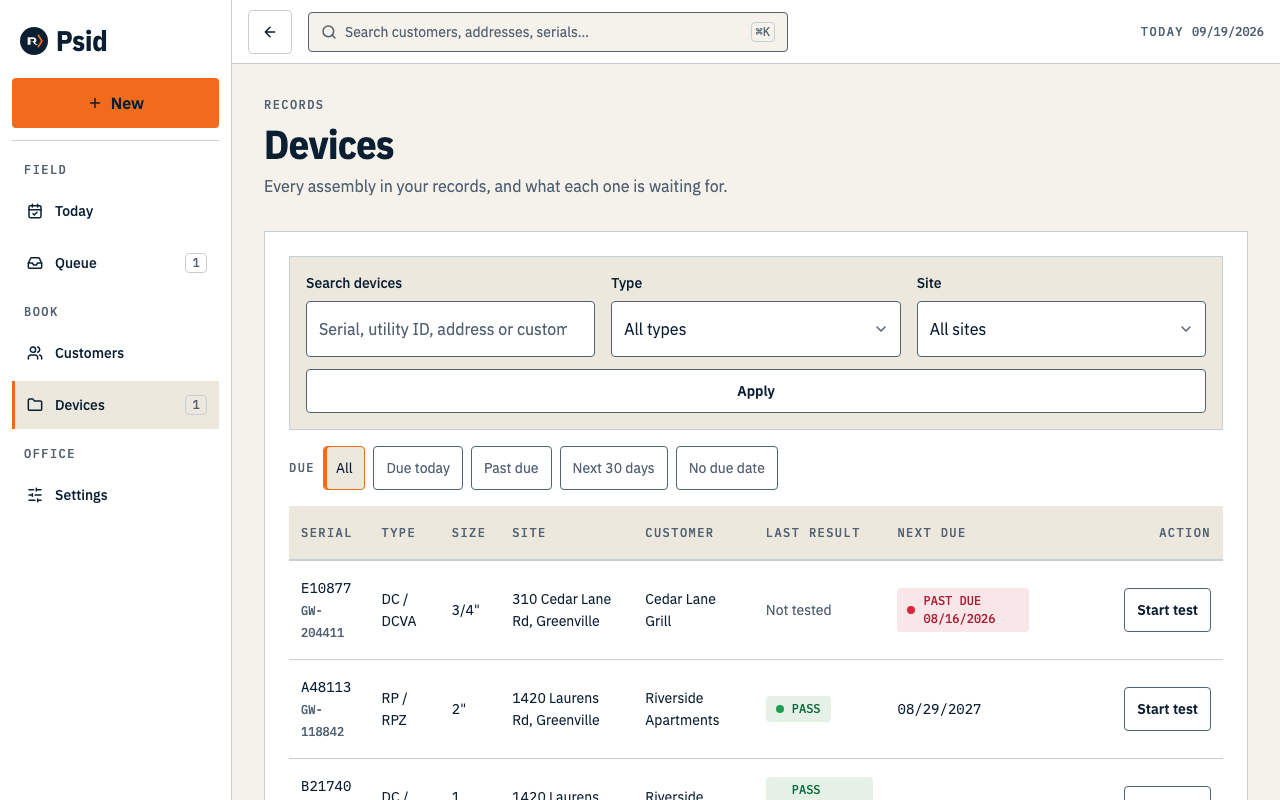
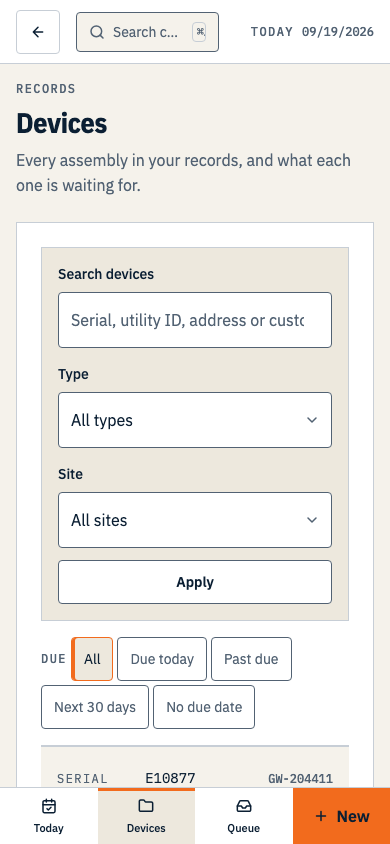
Where Add device is
- + New → Device, on every screen in the app.
- The customer record — the page's main action, and on every site heading.
- The site record — the page's main action.
- The devices list — the page's main action.
- The Add site form — Save and add device.
- Any device record — Add another device at this site.
- The command palette (⌘K or the search button) — Add device at this address.
Steps
Pick the Assembly type.
All nine types save. RP, DC, PVB and SVB have test entry; the detector and visual types say on the tile that they save to your records and that test entry is not built. Once a test starts on an assembly, its type stays fixed for that history.
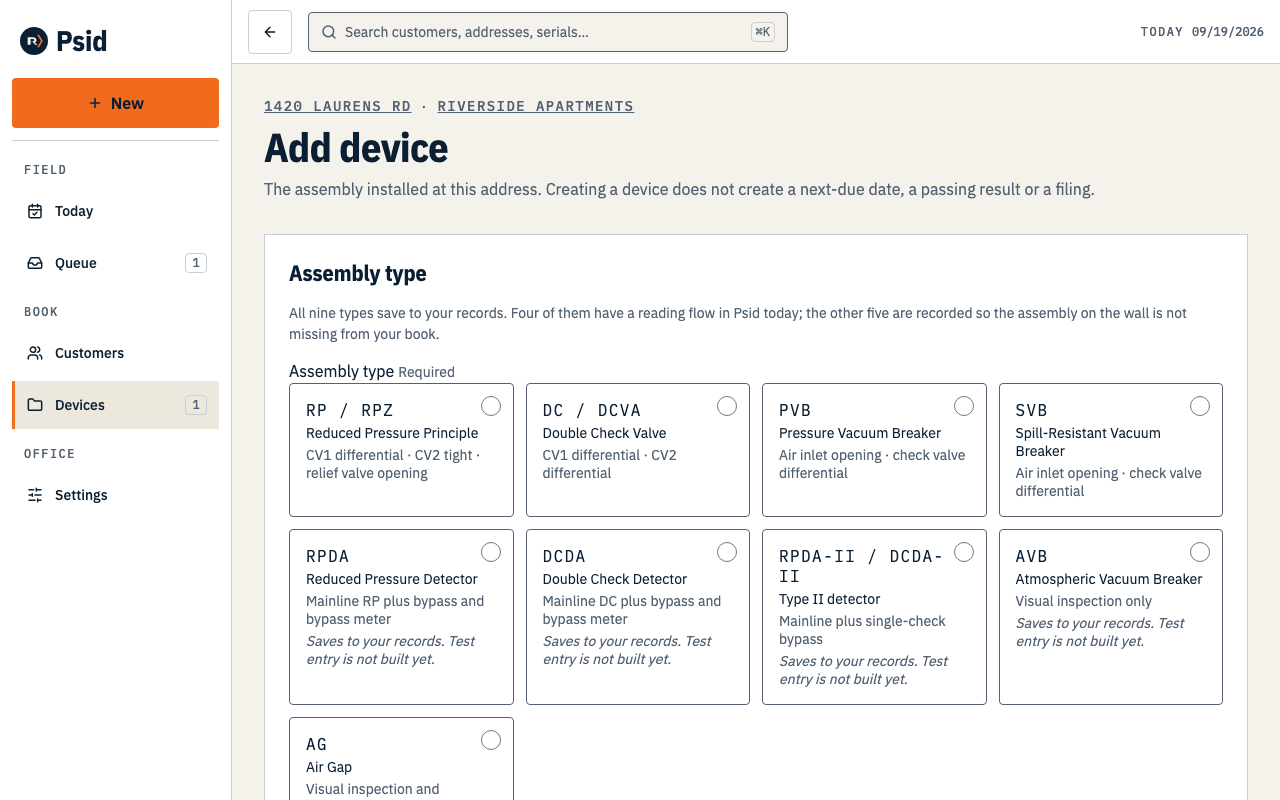
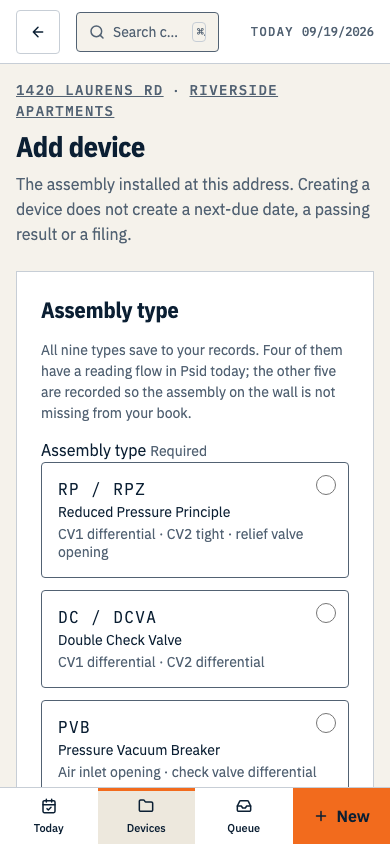
Each tile names what the type measures, so you are choosing a test, not an acronym. Type the Make, Model and Size. All three are required, because all three print.
Type the Serial and the Utility device ID.
The serial is what identifies this assembly next year. Take the extra ten seconds at the nameplate now; there is no photo capture to fall back on.
Describe the Location — where on the property this one is.
This prints on the form, and it is what stops a second tester walking the fence line next year.
Set the Test interval if it is not twelve months, then press Save and start test — or Save device.
The device record
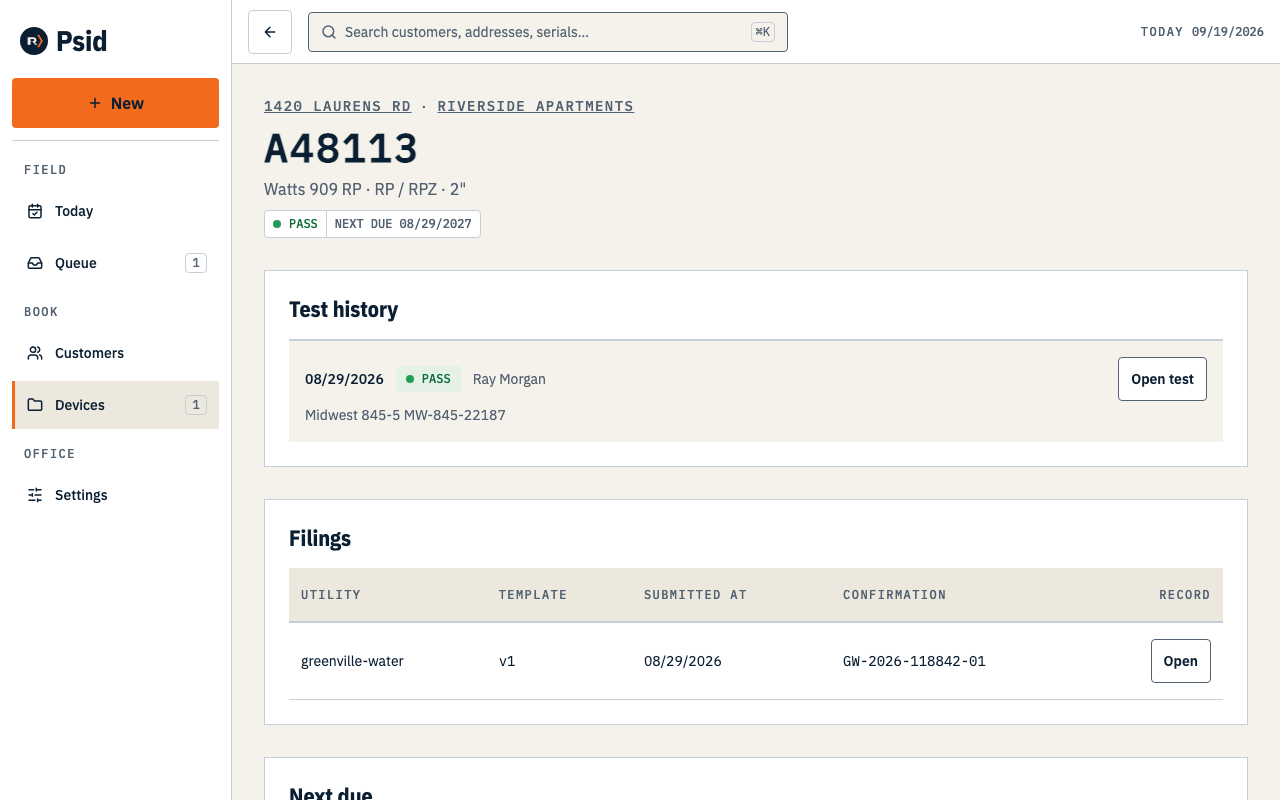
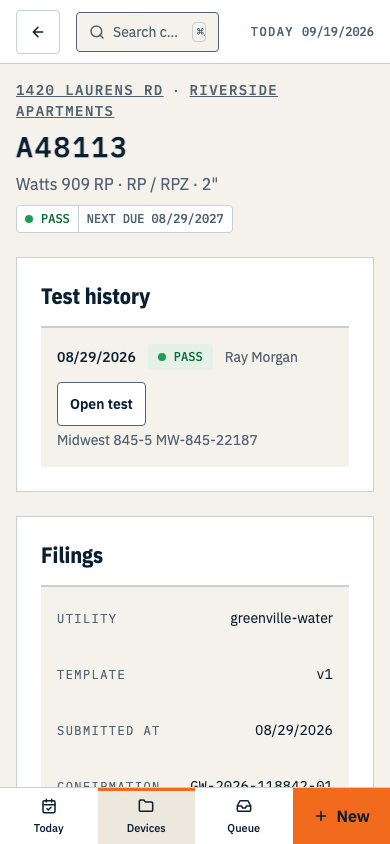
Saving an assembly records the assembly. It does not create a test, a due date you did not earn, or any history — a device you added today shows no test history, because it has none.