Certifications and gauges
Psid maps your certification number and each program’s requested gauge details onto supported reports. It checks certification and calibration dates against the test date for filing readiness.
Maintained by Psid. Contact support about this guide.
What prints
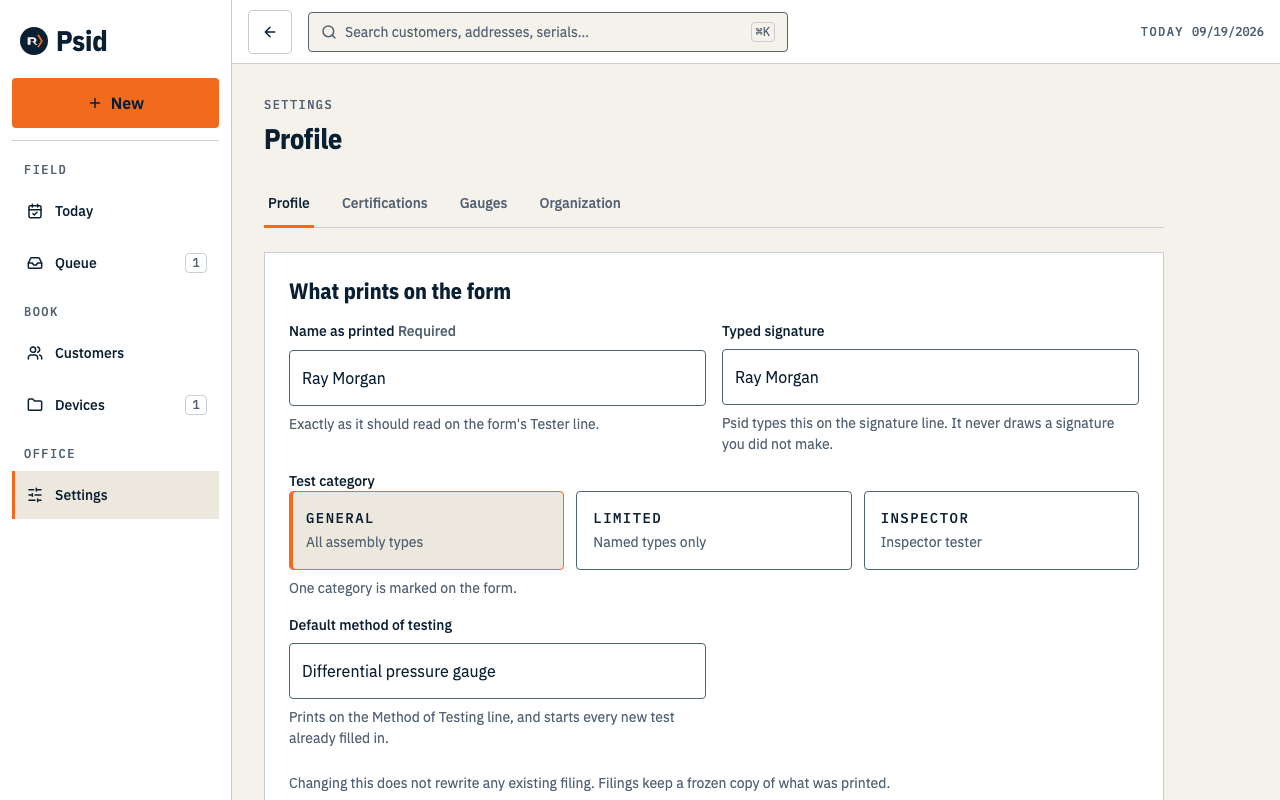
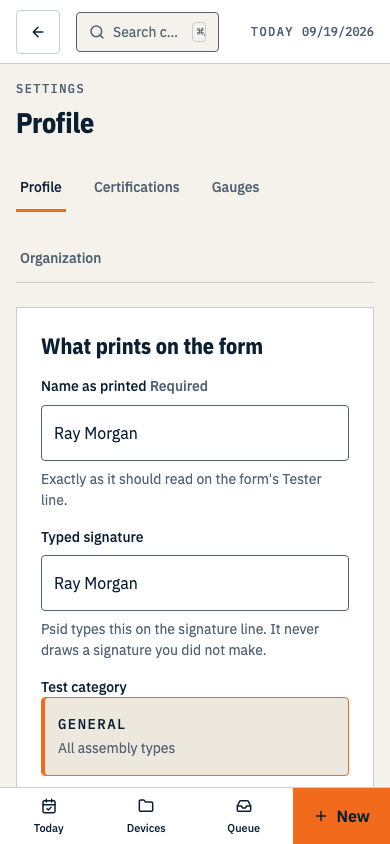
- Name as printed
- Exactly as it should read on the form. Not a username — the name a utility will match against its tester list.
- Typed signature
- Psid records only the text you enter here for your test attestation. There is no drawn signature or image upload. If it is empty, Complete test stays disabled. Spartanburg and Easley printed signature lines are left blank for signing outside Psid.
- Test category
- General, Limited or Inspector. It marks the matching box on the Greenville form.
- Company name and phone
- From Settings → Organization. The name prints on the Company line; the phone is optional, and its absence only means that line prints shorter.
Adding a certification
Open Settings → Certifications.
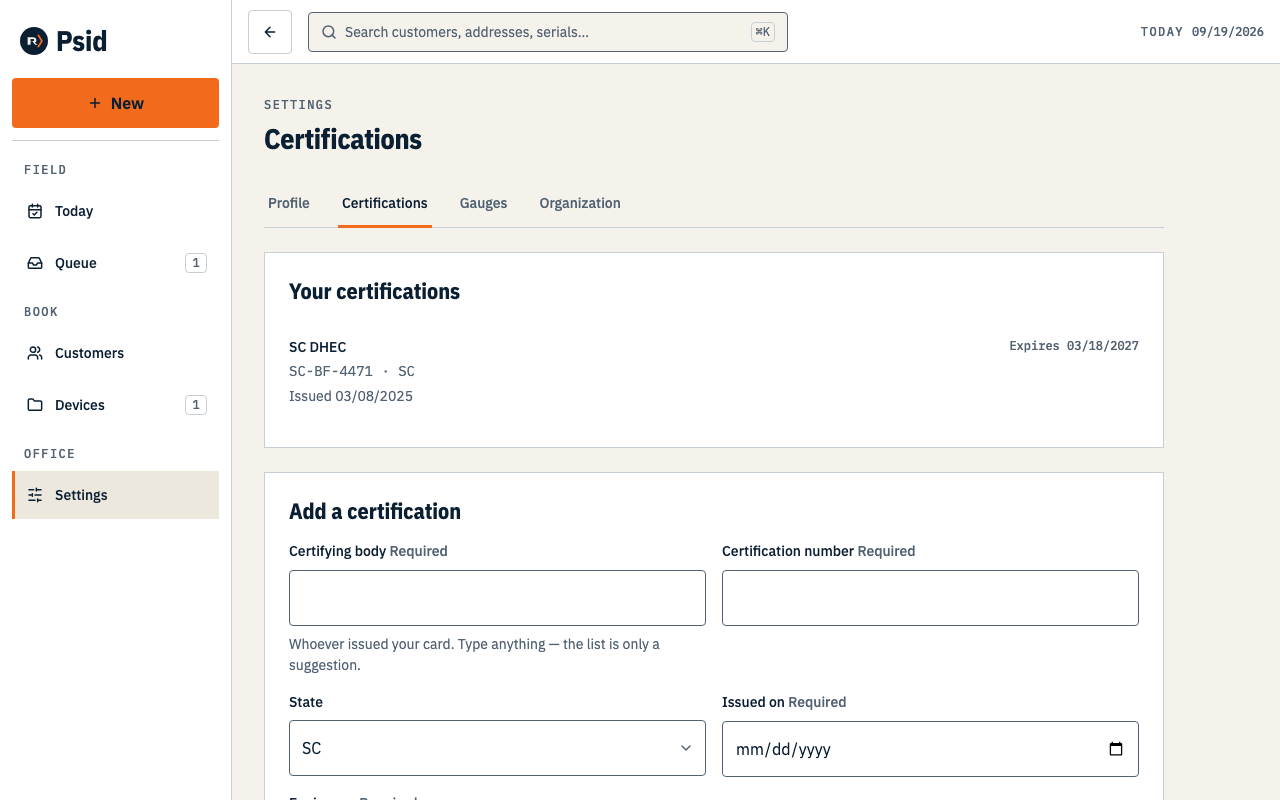
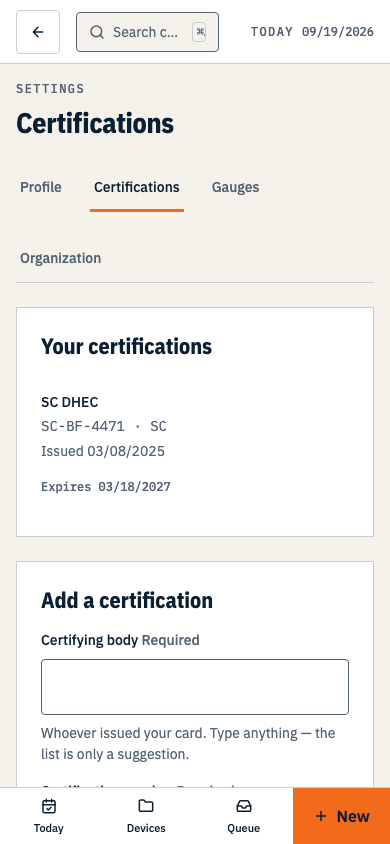
More than one is normal. A tester certified in two states keeps both here. Enter the Certifying body, the Certification number, the state and the dates.
The number prints in the Certification Number box on the report.
Press Save certification.
Adding a gauge
Open Settings → Gauges.
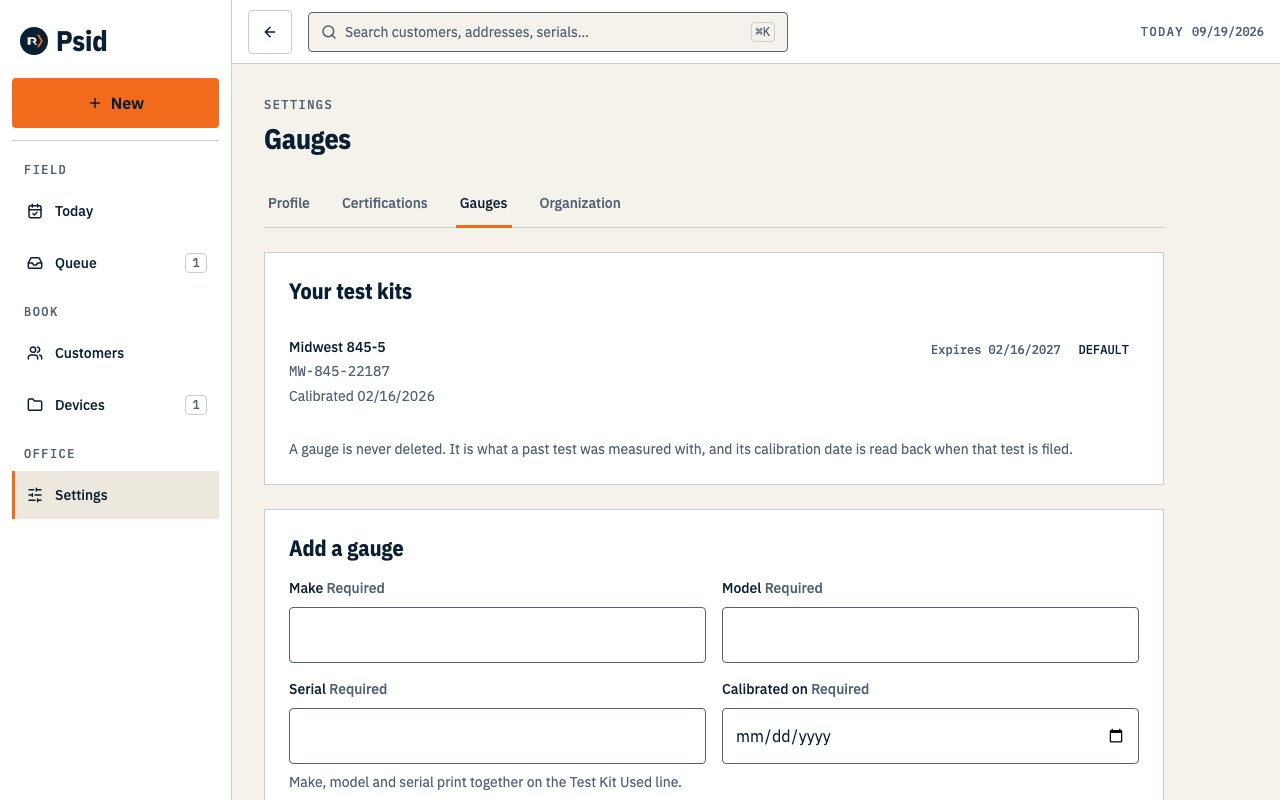
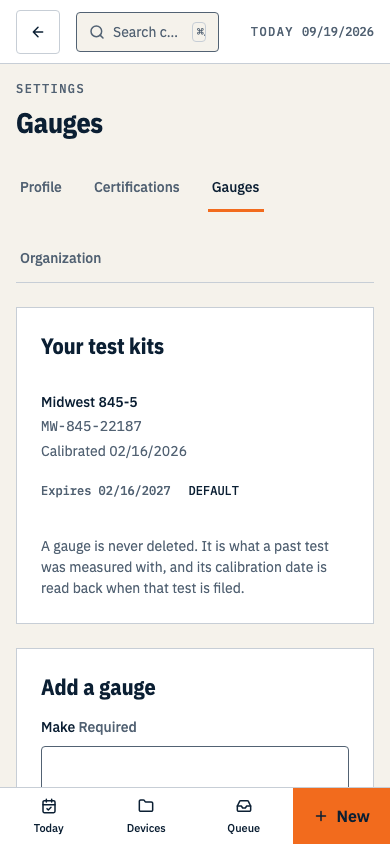
Make, model and serial identify the kit in Psid. The utility form prints only its mapped gauge details; calibration dates decide whether you can create a filing packet. Enter the Make, Model and Serial, then Calibrated on and Calibration due.
Tick Make this the default gauge if it is the one you carry.
The default is preselected on every test, so the visit panel is already right on a normal day.
How the dates are enforced
- At test time — a warning
- An expired certification or an out-of-calibration gauge shows a banner on the readings screen. It never stops you entering readings. You are standing at the assembly; the record of what you measured is worth having either way.
- At filing time — a block
- The queue will not produce a filing against an expired credential. The owner can record an override, which asks for a reason and evidence and writes who did it and when to the audit log.
- Judged against the test date
- Validity is always measured against the day the test happened, never today. Renewing a certification next week does not make last week’s test valid, and Psid will not pretend it does.
- No grace period
- A date that has passed has passed. Psid adds no days of its own to anyone’s expiry.
Psid does not remind you that a certification or a calibration is expiring. It shows you the date where the date matters — on the test and in the queue — and that is all it does.